 Login
Login

Creating a Support Ticket

How to create a Support Ticket using MyTC Portal
- First, choose New Support Case upon logging into MyTC Portal

- Second, choose the appropriate product tag that you’re having issues with

Below is our category of the products for DiCentral customers:
- DiWeb – The Default product for DiCentral customers.
- DII – DiIntegrator
- NetSuite Adaptor – For clients using NetSuite solution.
- DIOMS – DiCentral Order Management Software System
- Net-Transfer – For clients receiving and transferring files using Net-Transfer
- DiConnect – For clients receiving and transferring files using DiConnect Lite
- FTP/SFTP – For issues pertaining FTP/SFTP connection between clients and DiCentral
- AS2 – For issues pertaining AS2 connection between clients and DiCentral
- Certificate Renewal – For requests to renew certificates between clients and DiCentral
If you are unsure about the product having issues, you may choose “Other”
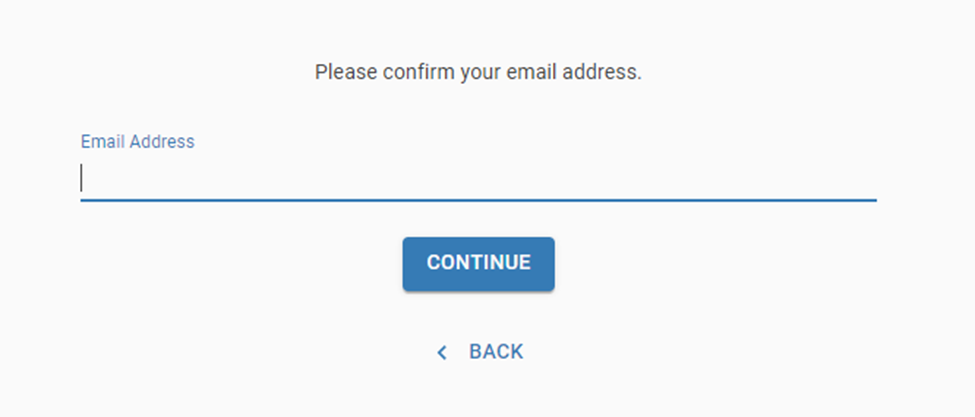
- Once you have picked a certain product, you will be prompted to input your email address:
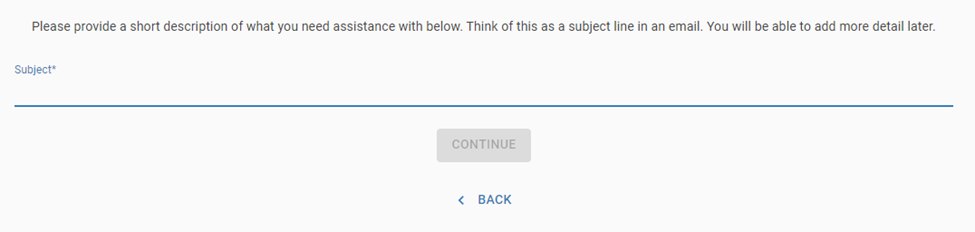
- You are required to provide a brief description of the issue you are having:
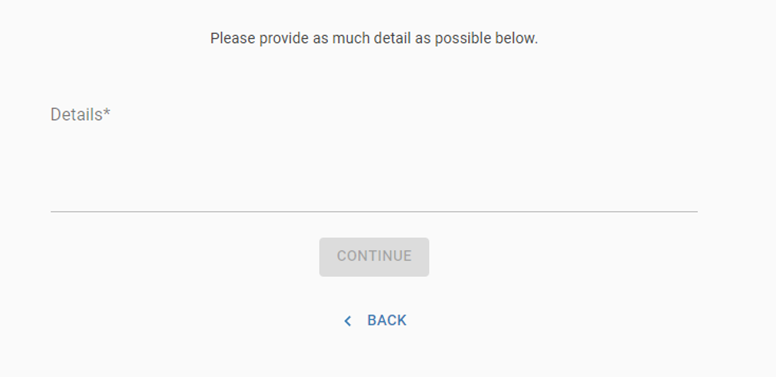
- Like emailing us, you will include details of your issues here:
Once all the details have been filled out, the system will create a support request and you will be notified via email of the case #

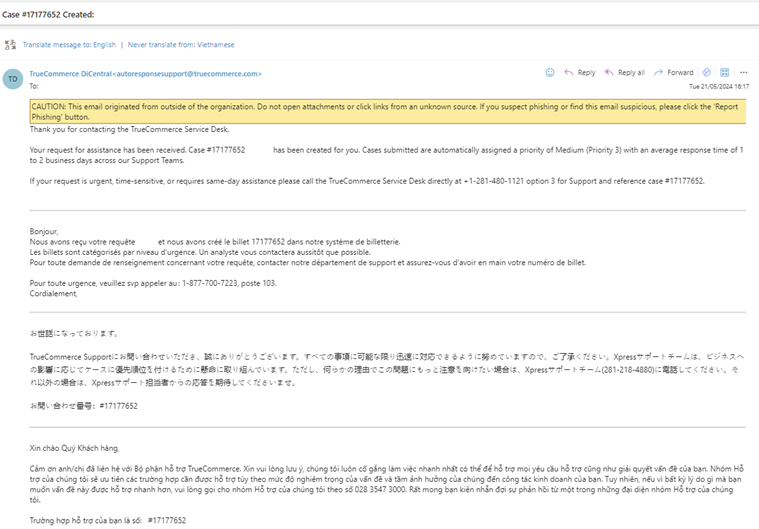
From this point forward, you will receive case updates via email and both MyTC portal.
While MyTC Portal is a dedicated source to create & monitor your support requests, we do not require our customers to respond to our conversations using MyTC. You can reply directly to the e-mail MyTC sends to you to converse with us.